
Cloud Sync
Sync current Projects and Crafting progress across devices.
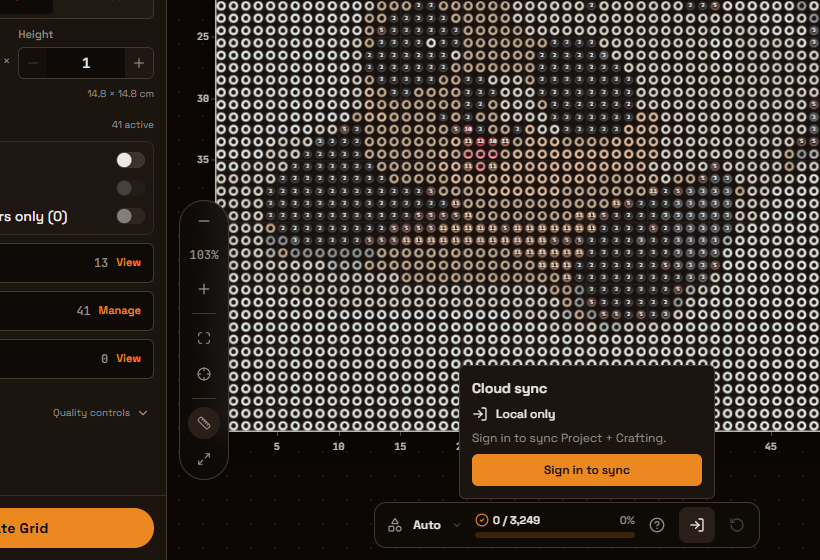
You must sign in before cloud sync is available. Beadify remains local-first, and sync adds cross-device continuity for the current Project and its separate Crafting progress.
Plans And Sync Modes
- Free: up to 3 project folders and 10 cloud-synced Projects. Choose Sync now when you want to send the latest Project and Crafting progress to the cloud.
- Pro and lifetime: unlimited project folders and up to 500 cloud-synced Projects. Current Project and Crafting progress sync automatically.
Project folders are account-scoped organization metadata. Folder names, cover references, sort order, and project assignments sync with your account when you are signed in. Deleting a folder does not delete its projects.
If cloud usage is over the Free quota after downgrade grace, cloud writes can become read-only while local editing still works.
Read The Cloud Icon
Open the cloud icon in Crafting to see:
- Manual or Automatic, based on your plan;
- the current state, such as Up to date, Changes not synced, Syncing, or Offline;
- how many Projects use your cloud allowance, shown as
used / limit; - Sync now, sign-in, retry, or conflict actions only when they are useful.
The short tooltip shows only the sync mode and current state. Project and Crafting status are combined so the same healthy state is not repeated.
Crafting Progress
Each cloud-synced Project includes one separate current Crafting checklist. Resetting Crafting progress does not change the Pattern or exports. Guests keep progress on the current device; Free users sync it with Sync now; Pro and lifetime users receive automatic sync.
Current Project State
Cloud sync stores one current Project state and one current Crafting state. Beadify does not create or expose Project History, checkpoints, or restore actions. Any pre-existing legacy version snapshots are not a current plan benefit and are retained only until their recorded expiry or deletion while retirement finishes.
Cloud Inventory Snapshot (My Inventory)
- Paid/Lifetime users can read and write the cloud inventory snapshot.
- Free users can read only their own previously synced cloud inventory snapshot.
- Free users cannot create new cloud inventory writes until they upgrade.
Resolve Conflicts
A Project title ending in [conflict] means cloud sync detected competing
Project edits and created a safe local copy instead of overwriting work.
For a Project conflict:
- Open both projects and compare results.
- Keep the project with the edits you want.
- Delete the other one.
- Click Sync now.
If only Crafting progress conflicts, Crafting asks whether to keep the cloud state, keep this device, or combine placed-bead marks when both states belong to the same Pattern.
To reduce conflicts, avoid editing the same project in multiple tabs/devices at the same time, and sync before switching devices.